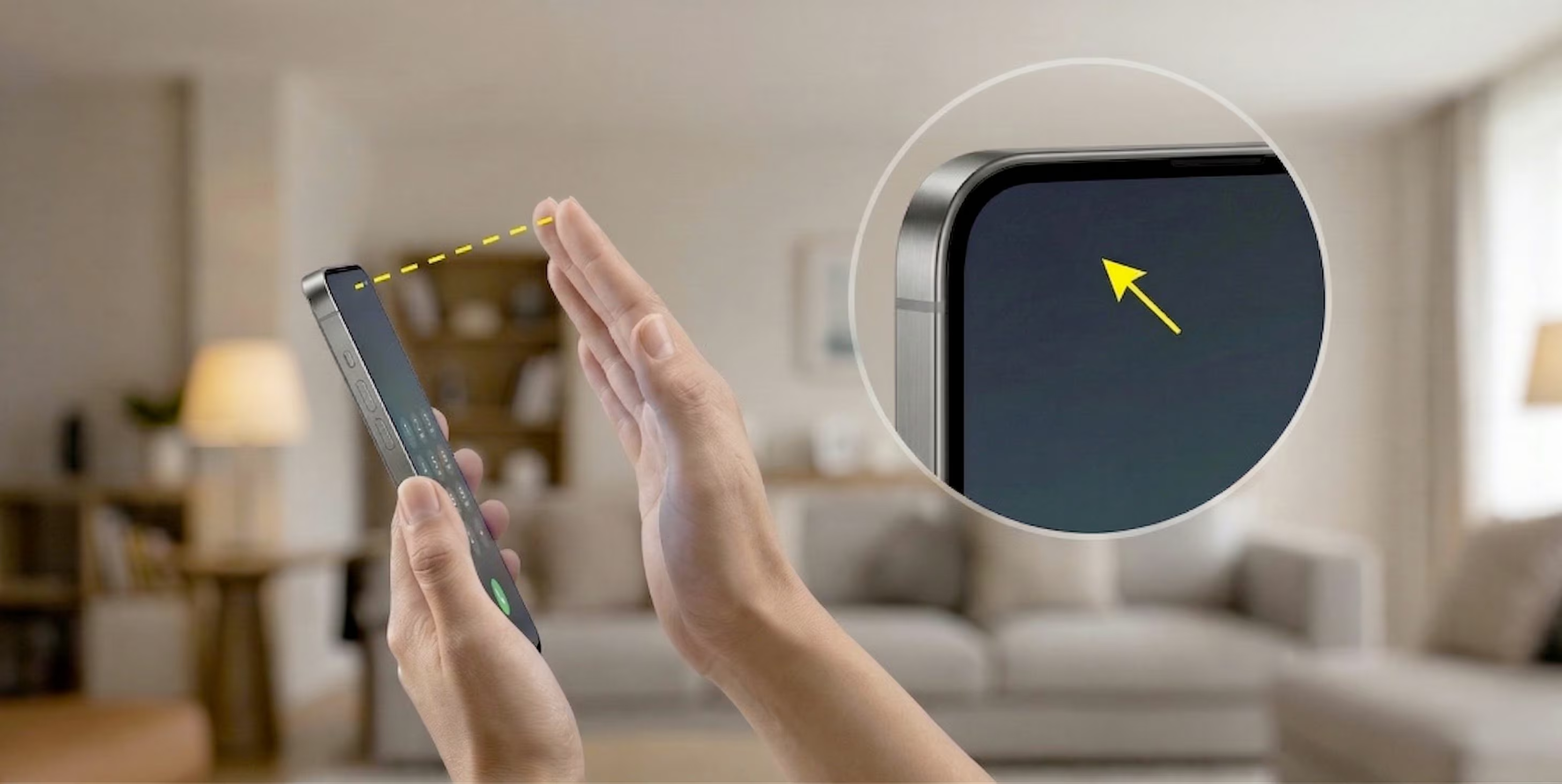
When we bring the smartphone to our ear to answer a call, the screen turns off. Have you ever noticed it? But how does the phone know that we are actually holding it to our ear? Thanks to the action of a small hardware component, called a proximity sensor, designed to recognize when an obstacle (typically our face) is very close to the top of the phone, in its proximity precisely. Thanks to the proximity sensor, which is generally located above the phone display near the front camera, we avoid touching buttons and elements of the touchscreen interface with our ear or cheek, which could lead to accidental call interruptions or other unpleasant unexpected events. To achieve this result, the system uses a detection technique based on infrared light, a portion of the electromagnetic spectrum invisible to the human eye but widely used in electronic sensors. Let’s delve deeper into it.
How the smartphone proximity sensor works
The operation of the smartphone proximity sensor is based on a process of emission and detection of infrared light (the same that allows you to change channels with the remote control). Infrared is electromagnetic radiation with longer wavelengths than visible light, therefore not perceivable by the human eye but easily generated and detected by very small electronic components.
Inside the phone we find two main parts: an emitter and a receiver. The emitter produces very short pulses of infrared light, while the receiver monitors whether this light is reflected by a nearby object. When we bring the device close to our ear, our face intercepts the light beam and reflects part of it towards the sensor. The electronic system interprets this reflection as a proximity signal.
In theory, by measuring the time it takes for light to be emitted, reflected and returned to the sensor (a method called time-of-flight), one could also estimate the distance to the object. In smartphones, however, the system is generally simplified: instead of calculating precise distances, the sensor operates with two logical states. In practice it only distinguishes between the presence of an obstacle in front of the screen and the absence of an obstacle. When the sensor detects an “occlusion” the phone software turns off the display. When the obstacle disappears, the system interprets the change in state and reactivates the screen. That’s it!
The result is automatic behavior that reduces input errors and also contributes to energy savings, because the display, one of the most energy-intensive components of the smartphone, remains off for the entire duration of the phone call.
What to do if the proximity sensor doesn’t work
When the proximity sensor does not work correctly, there are two most obvious symptoms: the screen remains “black” even when we move the phone away from the ear or, on the contrary, the display remains on during the call. In both cases the problem can be quite annoying and can depend on various factors.
The first thing to check is the top of the smartphone, where the sensor is located. Dust, fingerprints or dirt can interfere with the passage of infrared light. Gently wiping the surface with a soft, dry cloth may then solve the problem.
Some accessories can also cause interference. Protective films, tempered glass, cases and the like not designed for that specific model can cover or shield the sensor. In these cases the infrared light emitted may not correctly reach the object in front of the phone or may not return to the receiver. Removing non-genuine accessories may solve the problem.
Another possible cause of proximity sensor malfunction is static electricity, which can build up in hair or some accessories and temporarily alter the sensor’s behavior. Additionally, when we use modes like speakerphone or wirelessly connected external audio devices, the automatic screen-off feature can be disabled because the phone (rightly) assumes we’re not holding it close to our face.
If the abnormal behavior persists, an often effective solution is to restart the device and make sure you have downloaded the latest available system update. If the problems persist, it is better to contact assistance or a technician you trust to get to the bottom of the problem.