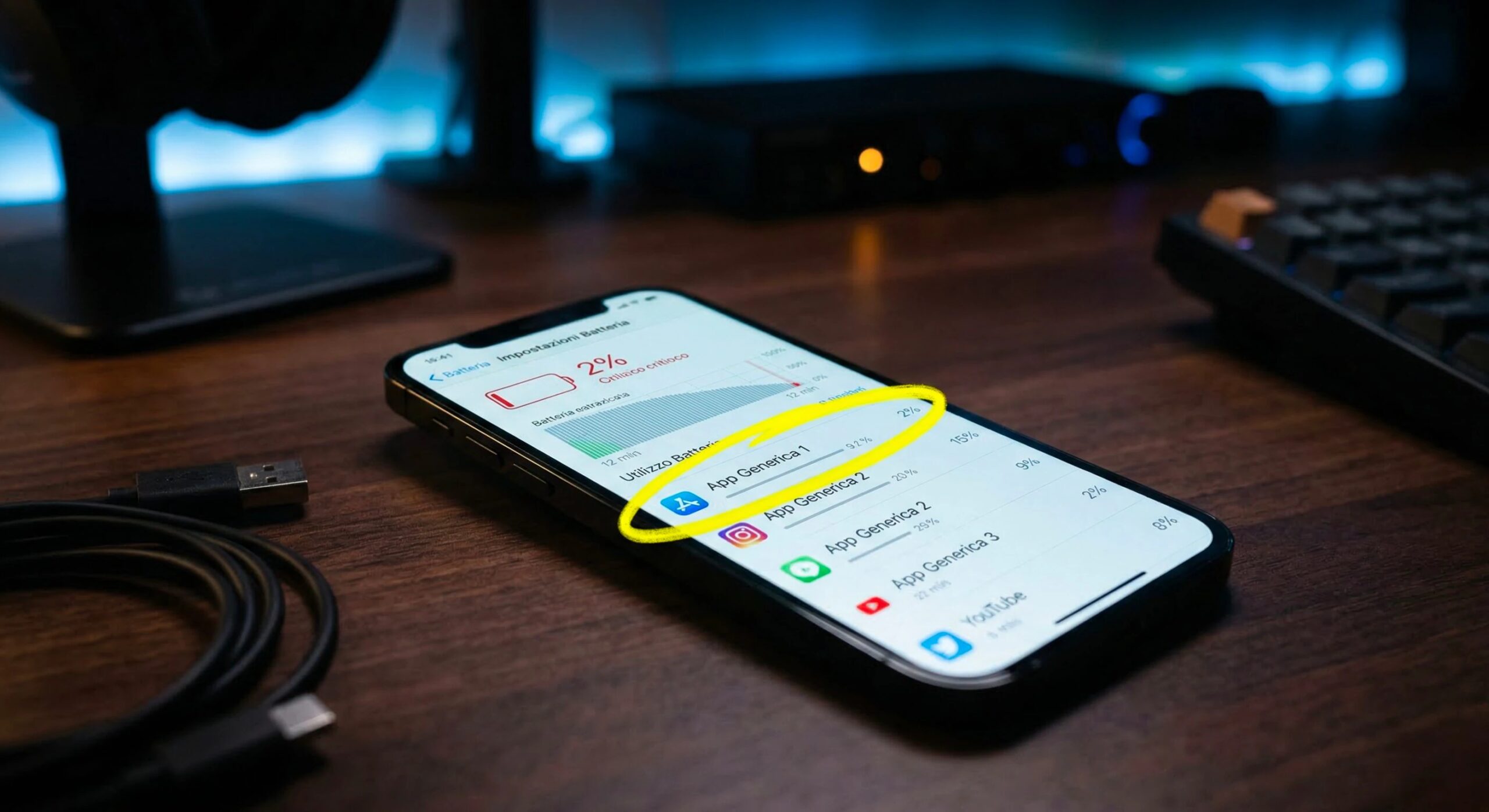
Battery life is one of the parameters that most influence the daily experience with the smartphone. Even when the capacity (i.e. the amount of energy that the battery can store) is still high, the autonomy can be significantly reduced if some applications use the device’s resources intensively. In many cases the problem is therefore not the battery itself, but the way in which the software uses components such as the processor, the data connection or the geolocation system. For this reason, modern operating systems integrate monitoring tools that allow us to analyze quite precisely which apps – including those that work in the background such as social networks, Facebook, Instagram and WhatsApp – are more energy-intensive than others.
In the statistics available in the Android and iOS settings (the Apple operating system installed on the iPhone) it is possible to observe a summary of battery use, the time of the last charge and above all a list of the applications that had the greatest impact on the autonomy of the device. Knowing this data therefore allows us to intervene in a targeted way, for example by closing the app responsible for draining the battery more or, in the most extreme cases, by uninstalling it. So let’s see how to understand which apps consume the most.
How to check consumption on Android
To identify the applications that consume the most battery on Android we must act from the system settings. Here’s how to do it.
- Open the Settings app, recognizable by the gear icon. We can open it from the drawer (also known as the application drawer, which is the screen that collects all the apps installed on the device) or by lowering the notification panel twice and tapping the corresponding icon. Then these are the steps to follow:
- Go to the section Drums (or a similar item, for example Battery and performance), often also discoverable via the internal search bar.
- Here we find a summary of the remaining autonomy, information on the last charge and above all the voice Battery usage (or similar wording), which shows a list of installed apps accompanied by the percentage of energy consumed. The percentage represents the share of battery used by that specific application compared to the total recorded in the analysis period. In many versions of Android, you can also view the app’s uptime in minutes.
It should be remembered that Android is a system that suffers from so-called “fragmentation”, i.e. the presence of numerous software versions more or less customized by various manufacturers. This means that the steps and wording we have just suggested may not be usable for everyone. You may notice different entries and options on your device, which may force you to search for them more. Generally speaking, however, the principle remains the same: accessing the settings and consulting the section dedicated to the battery is what you need to do to understand which app consumes the most and which consumes the least.
How to understand the apps that consume on the iPhone
On iPhone the procedure to follow is conceptually similar to what was seen for Android. Also in this case you need to access the statistics available in the system settings. Below you will find the steps to achieve this.
- Open the app Settings and touch the voice Drums.
- Scrolling down you will find the Apps and system activities section: this table lists the applications responsible for the greatest energy consumption.
- By pressing on the View all battery usage item, you can access the Battery usage screen which contains all the complete statistics.
- Under the Daily usage heading, a graph with the statistics of the last few days and that of the current day is shown.
- By scrolling the screen to the Battery usage per app section you can see how much each app has affected battery consumption. By touching the name of the app that consumed the most (or any of those listed) it is also possible to see how much the single app examined affected the battery when it was in use (i.e. when it was open and active on the screen) and also the relative consumption in the background (i.e. when the app worked behind the scenes, not being visible on the screen).
What to do if an app uses too much energy: tips for limiting consumption
Once you have identified an app that uses an unusually high amount of energy, you could intervene in various ways: close it, forcefully stop it from the settings (if for some reason the app does not close), check if there are updates and install them promptly, given that these could fix bugs that are at the origin of the anomalous consumption of resources or, even, consider uninstalling the application.