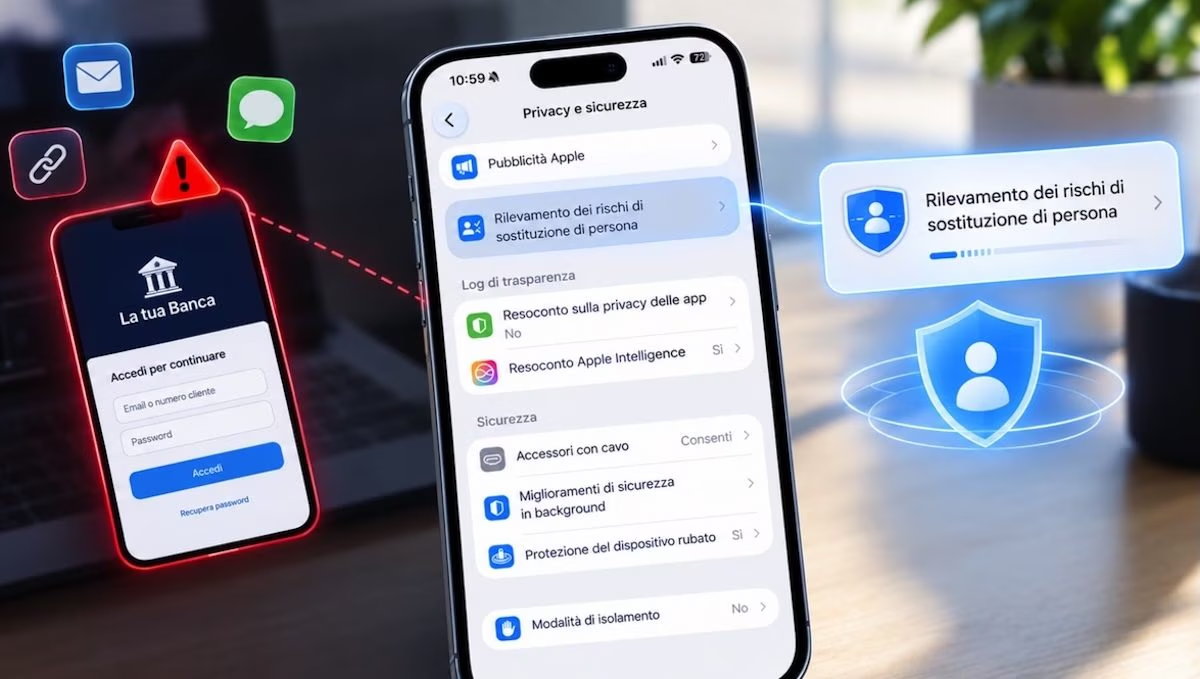
Apple introduced a new security feature in iOS 27 called Mistaken Risk Detection, designed to spot suspicious signals while using certain apps on your iPhone. The function does not consist of a simple filter to block unwanted phone calls or messages, but according to Apple it serves to «to protect against active social engineering fraud». An online payment, a change to the password of a social account or an update of banking details can turn into tempting opportunities for cyber criminals, who can exploit these pretexts to convince potential victims to carry out apparently legitimate actions. In reality, behind these requests there could be a well-orchestrated fraudulent scheme. To combat this type of scam, the function in question could be very useful (even if it does not replace the caution that each of us should always have online). Let’s see how to activate the hidden function on iOS 27 to prevent scams.
How person substitution risk detection works and what purpose it serves
Let’s first see what the purpose of detecting risks of impersonation is, starting from an assumption: not all computer scams work through malicious links or malicious software. In many cases, criminals try to directly manipulate victims into sharing confidential information, making payments, or changing account credentials using a technique known as social engineering. This includes all those psychological strategies used to induce a person to make decisions that favor the scammer.
Think, for example, of someone who poses as a fake bank operator or a fake official of a public body and convinces their victim to change the security settings of their account because, if they don’t, it could impact them with some type of security problem. Since, also due to the advent of AI, this type of attack is becoming more and more common, and unfortunately more and more effective, traditional tools such as two-factor authentication, which requires additional verification in addition to the password, are not always sufficient to prevent these frauds. If whoever contacted you makes you believe that it is Truly the bank operator, for one thing, you could trust to the point of giving them the code generated by the two-factor authentication system, thus making this security system easily breachable.
It is precisely in situations of this kind that the new function available in iOS 27 (and also in iPadOS 27) comes into play. The operating system can analyze certain signals associated with your device usage and your Apple Account to estimate the risk of suspicious activity. The result is then communicated to the app that requested the verification (for example that of the bank, to stay with the same example), which can decide how to behave: it could show a warning, ask for further confirmation of identity or introduce a delay before allowing a certain operation.
The limits of the iOS 27 anti-scam feature
However, its operation does not equate to an automatic blocking of all scams. This is worth specifying. The function actually provides a assessment of the risk, while it is then up to the individual app to decide which measure to adopt. Furthermore, the system is only available in applications that support this technology: not all operations performed on your iPhone or iPad are therefore controlled in this way. And this is why, even after activating the setting, we must always maintain a high level of attention when we are online and when external parties contact us by telephone, e-mail or message.
The returned assessment can take on three different levels of risk. The first is Unknown, which indicates no detected evidence of suspicious activity, but does not guarantee that the operation is safe. The Medium level highlights the presence of possible anomalous activities, while the High level highlights the presence of more significant signs of a possible fraud attempt. It is through these three degrees of risk that the app involved can calibrate its response, without it being necessary to automatically consider every single operation dangerous.
How to activate and use it on iPhone
To turn on impersonation risk detection on iPhone, follow these simple steps.
- Open the Settings app, scroll through its home screen and tap Privacy & Security.
- Scroll through the list of options that appear on the screen and, once you have identified the Detection of person substitution risks item, tap on it.
- Move the switch next to the Share with app development companies item to ON and confirm this with a tap on the Share with app development companies button.
- To complete activation, you may need to log in to the App Store with your Apple Account. If this is the case in your case, log in as usual.
Once detection is active, you don’t necessarily have to give this feature indiscriminate access to all apps. You can check which apps have requested a rating and why. In the Recent Activities section you will find requests made by applications, while in Reasons for Access you can review the actions that generated these requests. If you don’t want a specific app to use the feature, you can select it and turn off its toggle. Please note that changes, both to the general setting and to individual app permissions, may take up to 24 hours to take effect.