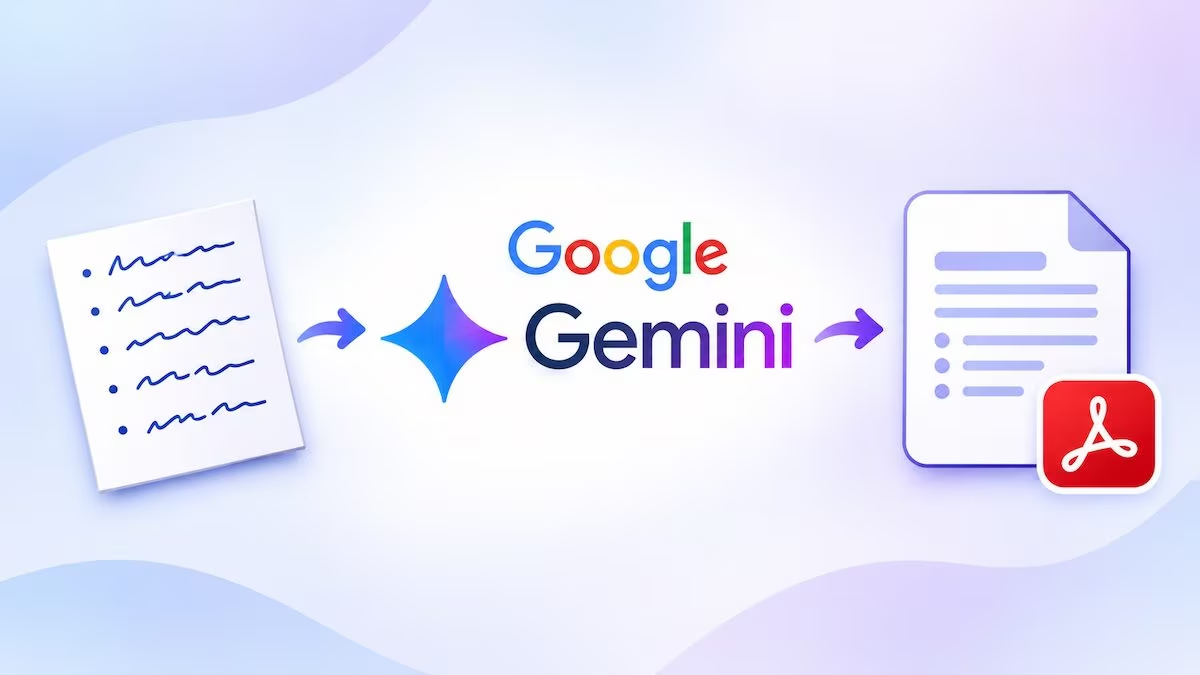
The notes taken during a lesson, perhaps written quickly on several sheets of paper, can become a tidy digital document without having to copy them to the computer. Simply photograph the pages and upload them to Gemini, Google’s AI chatbot, capable of recognizing the handwritten text and transforming it into a structured PDF. The process can be useful for students, but also for those who want to digitize work notes or bring together scattered information.
With a recent update, the company introduced the ability to view and edit PDFs directly in the conversation with Gemini, without resorting to an external program. Handwriting recognition, however, was already possible: the novelty mainly concerns the management of the file, which can be corrected and reorganized before being downloaded.
How to turn handwritten notes into PDF with Gemini
To get started, you need to photograph the pages in a well-lit environment, avoiding shadows and reflections. It is important to obtain clear photographs, in which all the words are visible. If your notes span multiple sheets, you must also upload the images in the correct order.
Once your images are prepared, you can use Gemini directly from your browser. To transform them into a PDF, the steps to follow are as follows:
- Open Gemini and sign in with your Google account if necessary.
- Click on the + button, choose the Load file item from the menu that appears and select the photographs from the clipboard.
- Write a request specifying how to transcribe and organize the text and asking to create a PDF.
- Send the message and wait for the assistant to process the images.
- Open the generated PDF and verify that the content matches the original notes.
Gemini is available as an application for Windows and macOS. From smartphones and tablets you can use the official app for Android and iOS/iPadOS, loading photographs from the device’s memory, or taking them directly with the camera.
It is important to formulate a precise request, because asking only to “transform the photos into a PDF” does not make it clear whether you want a faithful transcription or a summarized version of the content. To tell Gemini how to organize the material you can use this prompt, which is an instruction written for the AI:
Transcribe the notes on the attached photographs respecting the order of the pages. Organize the text with titles, subtitles and bullet points where useful. Correct only any obvious spelling errors, without changing the meaning of the explanations, eliminating information or adding content absent from the images. Point out illegible words without trying to guess them. Finally, create a tidy and easily consultable PDF.
The request can be adapted to your needs. To prepare for an exam, for example, you can ask for an index of topics, while for meeting notes it may be useful to distinguish the decisions made from the activities to be carried out. If you want a summary, it is better to specify that it must remain separate from the original text.
After generating the document, it is possible to intervene on the content without leaving the conversation with Gemini. This is one of the new features of the update announced by Google on October 29, 2026. The PDF can be opened and viewed in full screen, with the possibility of manually correcting the text or selecting a passage and asking the assistant to edit it.
If an explanation is unclear, you can select it and ask Gemini to rearrange it, for example with this prompt:
Reorganize this paragraph into a bulleted list, without deleting information or changing other sections.
You may also request changes to the visual elements present in the document. However, it is important to verify that the changes have not altered the meaning of the notes.
When you get the desired result, you can download the PDF to your device. Google specifies that viewing and editing this format is available to all users, even those who use the free version, within the limits set by the service.
The alternatives: how to use ChatGPT and Claude
ChatGPT and Claude also allow you to transform photographs of handwritten notes into PDF, recognizing the text and organizing it according to the user’s instructions.
With ChatGPT just attach the images to a conversation and ask to create a PDF, possibly using the same prompt proposed for Gemini. The generated document can be downloaded directly from the conversation and, where available, subsequently retrieved from the service library.
With Claude you can attach photographs and ask the AI to transcribe the notes and organize them into a PDF. Once the document has been generated, you can request further changes, such as the correction of any errors or a different layout, before downloading the final version.
The errors to check in the transcription and the risks for privacy
None of the three tools guarantees perfect transcription. Difficult handwriting, blurry photographs or personal abbreviations can lead to misinterpreted words or omitted information. Above all, you need to check numbers, dates, mathematical formulas and scientific symbols, because even a small error can change the meaning of an explanation.
Furthermore, transcribing and rearranging are two different operations. When you ask the AI to make text clearer, the model can eliminate details or add links not present in images. For this reason it is important to compare the document obtained with the original notes, verifying that all the information has been reported correctly.
Finally, pay attention to privacy: uploading photographs to Gemini, ChatGPT or Claude means sharing the content with the respective services. Before sending notes with personal data or confidential information, it is advisable to check the conditions and settings relating to data processing. It may also be useful to check any metadata of the photographs, which, if present, may contain information such as the geographical location of the shot.