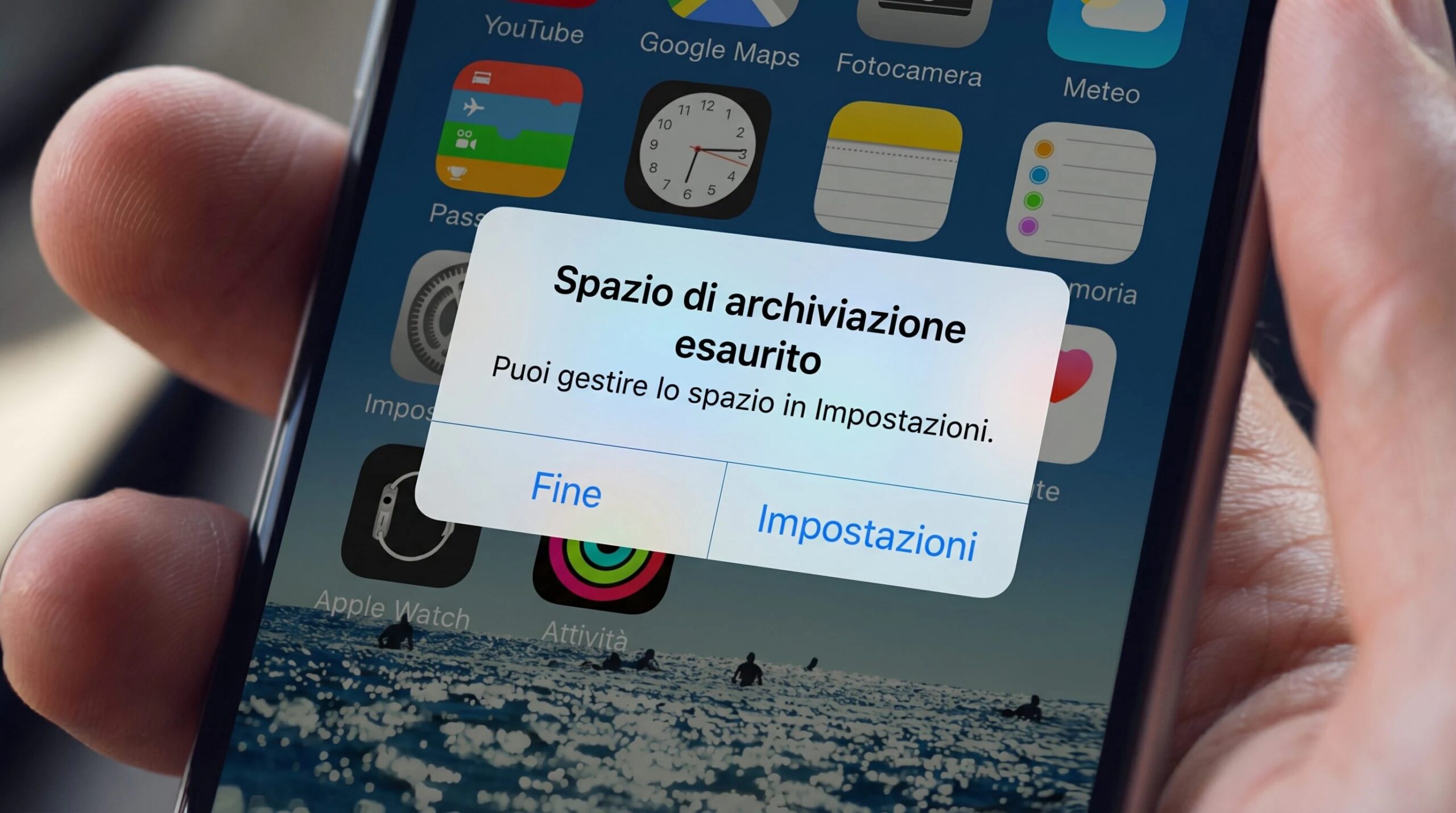
The internal memory of a smartphone is not infinite, we all know this, and sooner or later we find ourselves dealing with the classic “Out of storage space” warning. Photos, videos, downloaded and forgotten apps, temporary files accumulated over time: they are all elements that silently eat away at available space. The good news is that both Android and iPhone offer native tools – that is, already integrated into the operating system, without the need to download third-party applications – to recover precious gigabytes. All in a simple and safe way. In this article we see in detail what operations can be done on both platforms to free up the phone’s memory: from cleaning the cache (the temporary files that apps generate during normal use) to managing photos and videos, including removing the bloatware (those applications pre-installed by the manufacturer that take up space without offering any real utility, especially present on Android) up to the transfer of data to external media.
How to free up Android phone memory
Let’s start with Android. the first intervention concerns junk files, i.e. temporary files generated by apps during their operation. Through the Files by Google app (already installed on many devices, but downloadable if necessary from the Play Store) it is possible to delete them with a couple of taps, without altering the application settings. To do this, just start it, press the ≡ button and then Clean > Erase.
Similarly, it’s worth clearing your browser cache periodically. If you use Chrome on your device, for example, from the menu with the three dots at the top right you can access the Clear browsing data section, where you can select stored images and files and choose the time interval to clean.
Another often overlooked operation is deleting unused apps. Over time, we accumulate dozens of applications that we no longer use, and each one takes up valuable space. It’s worth opening Settings, going to the Apps section and uninstalling anything you don’t need. The same goes for the Downloads folder, which tends to fill up with files downloaded automatically and rarely consulted: by accessing the app set as the default file manager (e.g. the aforementioned Files by Google or File Manager or My Files) and going to the appropriate section you can select and delete everything superfluous.
Photos and videos also deserve periodic attention. By opening the Gallery app (or Photos or Images, on some devices) and holding down the preview of an image or video to delete, you can select more than one piece of content at a time and delete it in bulk.
How to free up iPhone memory
Let’s move on, now, to the iPhone. Before deleting any item, it is best to check the distribution of the occupied space from Settings > General > iPhone Space. What are categorized as System Data are temporary files managed independently by iOS and can take up tens of gigabytes. Since they tend to shrink on their own after a device restart, if your iPhone has almost full memory, a useful first step you can try is to restart the device.
A very useful, and often ignored, function is to remove unused apps via the Uninstall apps option: unlike complete uninstallation, this mode preserves associated documents and data in iCloud, while freeing up the space occupied by application files. The function in question can be reached from the Settings > General > iPhone Space > (app name) > Uninstall app section and confirm the operation by replying Uninstall app to the warning that appears on the screen.
On the photo and video front, iOS allows you to browse by categories (screenshots, sequences, duplicates) and delete items in bulk. To proceed in this direction, just open the Photos app, go to the section subject to the cleaning operations you intend to carry out by navigating the Collections menu and selecting the preferred one (e.g. Screenshot). Then, you need to select the items to delete (or tap Select all if you want to delete them in bulk) and press on the trash can symbol and Delete photo.