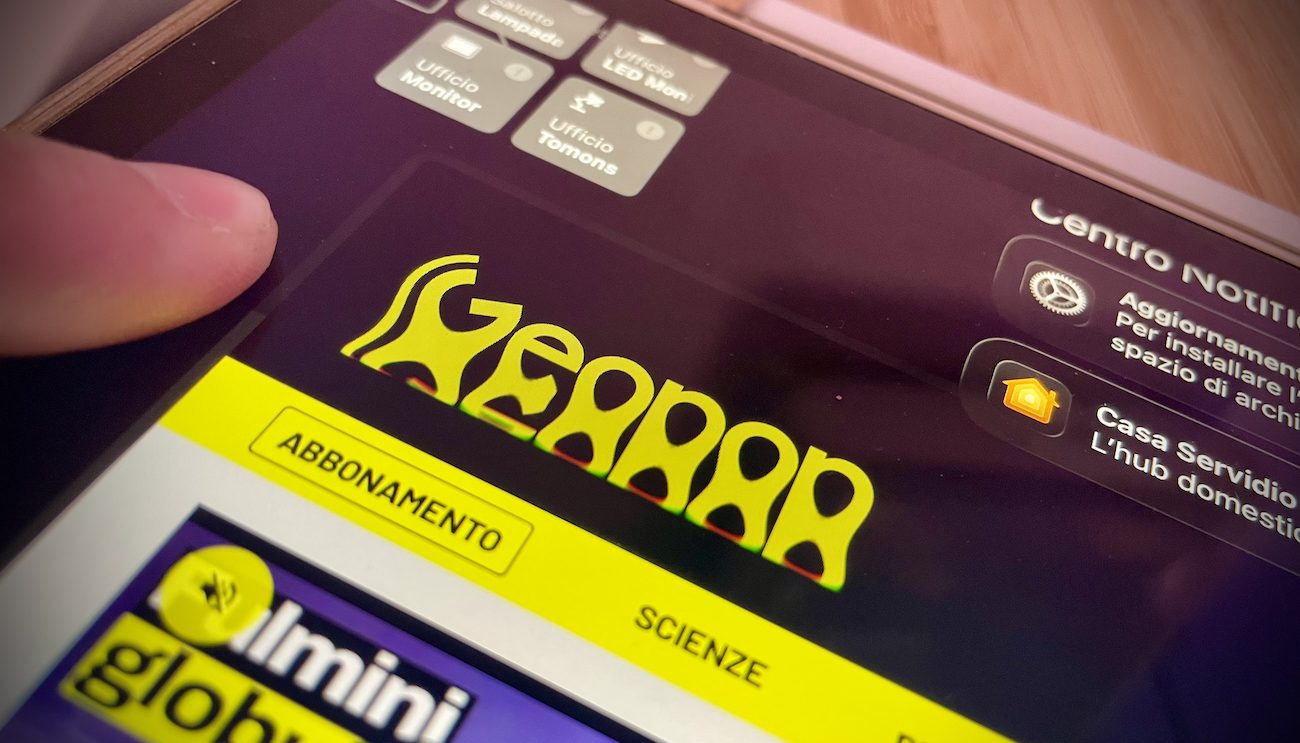
With the arrival of iOS 26, Apple has introduced the most important graphic renewal since the times of iOS 7, the Liquid Glass. This new interface is based on semitransparent and dynamic surfaces, which react to the touches of the user with light deformations and elastic animations. The idea at the base is clear: to give users the feeling of interacting with virtual materials reminiscent of a liquid glass precisely, giving the iPhone (and all the other Apple devices) a modern and fresh appearance. Despite the aesthetic charm, however, not everyone finds the new user interface based on Liquid Glass. Some users complain of readability difficulties, especially in bright environments or with complex backgrounds, where translucent menus can be confused with what is behind it. If you recognize yourself in this experience and want to know which settings to change to solve the legal problems attributable to Liquid Glass, we will reveal them soon.
Liquid Glass: a difficult birth
Liquid Glass overlaps texts and icons on translucent surfaces that allow to glimpse what is behind it. Apple had already experienced this style in 2013, with the introduction of iOS 7, but in iOS 26 the logic was pushed to the extreme: windows, panels and notifications simulate the presence of digital glass plates that change aspect depending on the context. The result is elegant, but at the same time it can confuse elements in the foreground with those in the background and create many difficulties in terms of readability. For example, by opening the control center, you could find yourself with clear texts and symbols on an equally clear background, making reading tiring.
During the beta testing phase of the new iPhone operating system, Apple collected numerous criticisms regarding the little readability of the new interface and has introduced a more “chopped” effect, similar to satin glass, to remedy the problem. But it is not said that this is enough for everyone. Since in the iOS 26 settings there are various options related to accessibility that allow you to customize the visual aspect, we will show you how to use them to mitigate the legal problems due to the Liquid Glass interface of your iPhone.
How to make iOS 26 more readable
To make iOS 26 more readable, follow these steps:
- Open the Settings app.
- Go to accessibility.
- Tap screen and text size.
- Here you will meet the voice reduce transparency: activate it by moving the switch on on on.
If you need even greater distinction between the different elements, in the same menu you can also enable contrast increases: in this way, texts and buttons acquire more clear, often white contours, which improve visual separation from the backgrounds.
Once the options in question is activated, the contrast will be improved, as the system will reduce transparencies and blurs of some backgrounds to increase readability. The effect extends to various areas of the system, including pre -installed applications such as system messages and screens such as the control center.