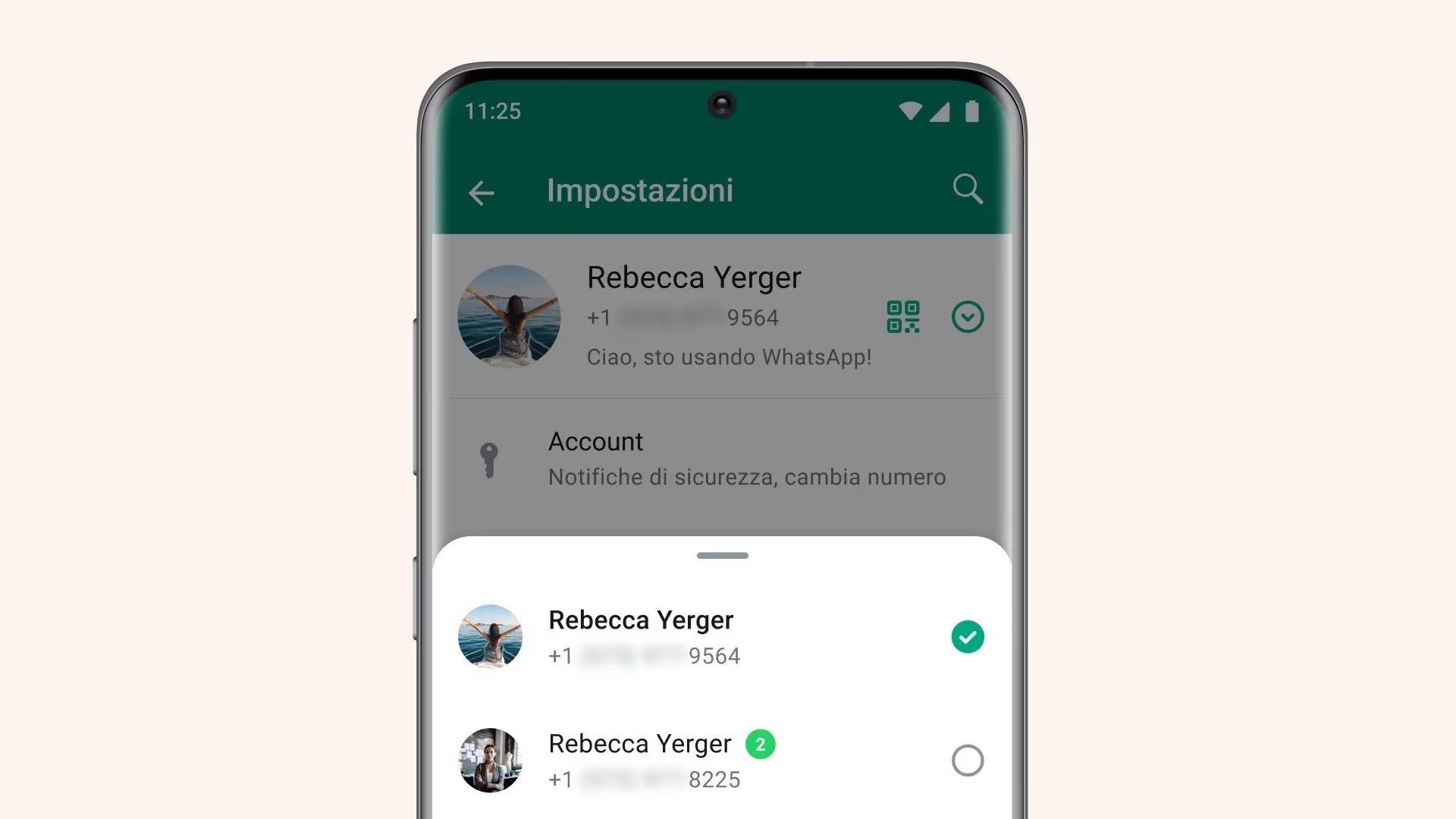
For a few years now it has been possible to use multiple WhatsApp accounts on the same device and using the official WhatsApp app, without having to go through third-party solutions and without having to use the WhatsApp Business app (the latter developed by Meta). This way it is possible switch from one WhatsApp account to another in a couple of taps and in a really simple way. On Android this possibility has been offered since 2023; more recently it also arrived on the iPhone, where the “You” tab made its debut in place of the old “Settings” tab. Having two distinct and separate WhatsApp accounts, but accessible through the same app, is useful for more easily managing communications regarding private life and one’s work or study, so as not to mix the two “worlds” and not get distracted when carrying out one or the other activity.
To take advantage of the functionality, you clearly need two active phone numbers, a compatible device with dual SIM or eSIM, and the latest updated version of the app. Let’s see how to proceed with the addition on both Android and iPhone.
How to add a second WhatsApp account on Android
To set up a second account on Android, you need to launch the famous messaging app on your device and then follow the following steps.
- Access the menu which can be reached by tapping on the three dots icon at the top right.
- Select Settings.
- Press the + button located next to your WhatsApp username or, if you prefer, go to Account > Add account.
- Whatever choice you have made, tap the + Add WhatsApp account button in the box that should have appeared at the bottom of the screen.
- Tap the Accept and Continue button.
- Enter the phone number relating to the second WhatsApp account you want to configure.
- Wait for the verification code via SMS, enter it in the text field and then follow the on-screen instructions to complete the procedure.
- Once the process is complete, you can switch from one account to another via the main menu, by tapping the three dots icon, selecting Change account and choosing the other configured account.
How to do it on iPhone
In 2026, the functionality that allows you to add a second WhatsApp account on the iPhone was also extended to Apple smartphones, albeit introducing a slightly different interface compared to what was previously seen on Android. Conceptually, however, nothing changes. To proceed in this case, you need to open the WhatsApp app and then follow these steps on your iPhone.
- Make a long tap on the You tab, located at the bottom right (where the “Settings” option once appeared) and select the wording + Add WhatsApp account in the bottom menu.
- Tap the Accept and Continue button.
- Provide the phone number for the second WhatsApp account you want to set up.
- Once you receive the verification code via SMS, write it in the text field provided and follow the instructions on the screen to complete the procedure.
- You can then switch from one account to another by making a long tap on the You tab and choosing the other configured account.