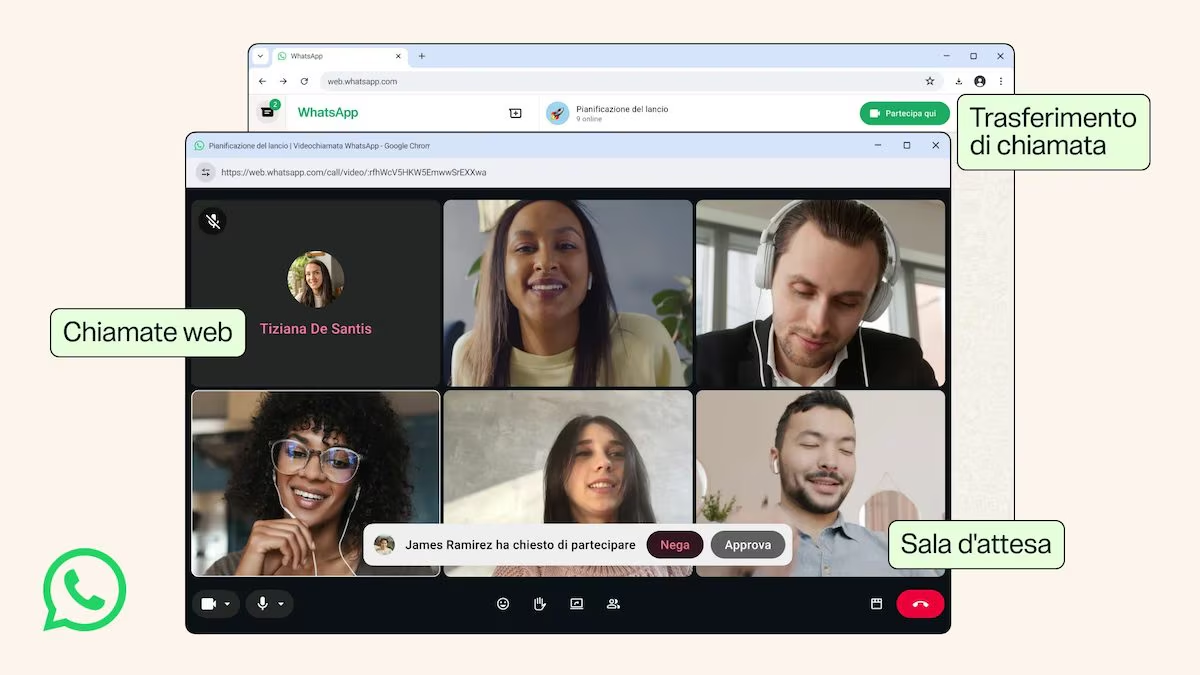
WhatsApp calls are no longer limited to your smartphone or its desktop application. In recent days Meta, the company that develops the famous instant messaging application, announced the availability of the WhatsApp Web Calling function which, as can easily be understood from its name, allows you to make and receive individual and group audio and video calls, using the Web version of the platform, the one accessible from the browser so to speak. The feature is currently underway rollout global, which means it may not have reached everyone yet. Within a few days or a few weeks at most, however, it should be usable on all WhatsApp accounts, even with the phone turned off.
The new feature eliminates one of the main limitations of the version of WhatsApp accessible via the Web and makes it much easier to switch from one device to another during the day. For those who use a shared PC, a company computer on which they do not have permission to install software or if they simply prefer to use WhatsApp without downloading its official desktop client, being able to participate in calls without interrupting what they are doing and without leaving the Internet browser window can be very convenient.
How to use the new WhatsApp Web Calling feature
To use WhatsApp Web Calling, simply open WhatsApp Web from your browser, connect your account via the QR code, following the procedure you should already know, and access the new section dedicated to calls. From here you can start or receive both individual and group audio and video calls, just like on the smartphone app. Inside the interface you will also find the complete history of calls made and received, along with the list of favorite contacts, so you can quickly call up the people you talk to most often.
The Web version also provides various functions already known to users of dedicated applications. Among these is screen sharing, which allows you to show other participants what appears on your computer display. Reactions are also available, allowing you to quickly express an emotion or consensus without interrupting the speaker.
From a security point of view, Meta states that calls made from the browser maintain the same level of protection already present on other versions of WhatsApp. Conversations are in fact protected by end-to-end encryption, a technology that encrypts data before transmission and makes it readable only to the call participants. In practice, the content of the conversation cannot be consulted by external parties, not even by the company that manages the service, in this case Meta. Furthermore, calls continue to have no duration limits and do not involve additional costs beyond the normal data consumption of the Internet connection.
Other related news announced by the messaging application
In addition to the availability of calls on WhatsApp Web, the platform has also announced other useful news. One of these is the transfer of calls between devices. Basically, if you start a group call from your smartphone while you’re away from home, you can continue the conversation on your computer once you get back, without having to hang up and call all the participants back. The same applies in the reverse path: if you are talking from the browser or desktop app and need to exit, you can move the call to your phone and continue the conversation without interruptions. This feature makes switching between different devices throughout the day much smoother.
WhatsApp also introduces a waiting room for group calls. When you create an invitation link, you can turn on the option to require organizer approval before entry. In this way whoever opens the link will not immediately enter the conversation, but will remain waiting until you decide to authorize access. The waiting room represents a useful solution especially during business meetings, online courses or meetings with numerous participants, because it offers greater control over who can take part in the call and at what time.
Another update concerns image quality during video calls. Thanks to the function called QuickHD, the high definition video will be available from the first moments of the conversation. In the past, it might take a few seconds for image quality to automatically improve; with this update the transition will be much faster.
Audio quality also receives an improvement thanks to noise suppression. This technology is designed to detect and attenuate background noises, such as traffic, people talking nearby, or other ambient sounds, while highlighting the voice of the speaker instead. The goal is to make conversations clearer even when you are in crowded or particularly noisy places. If necessary, you can activate or change this setting directly during the call.