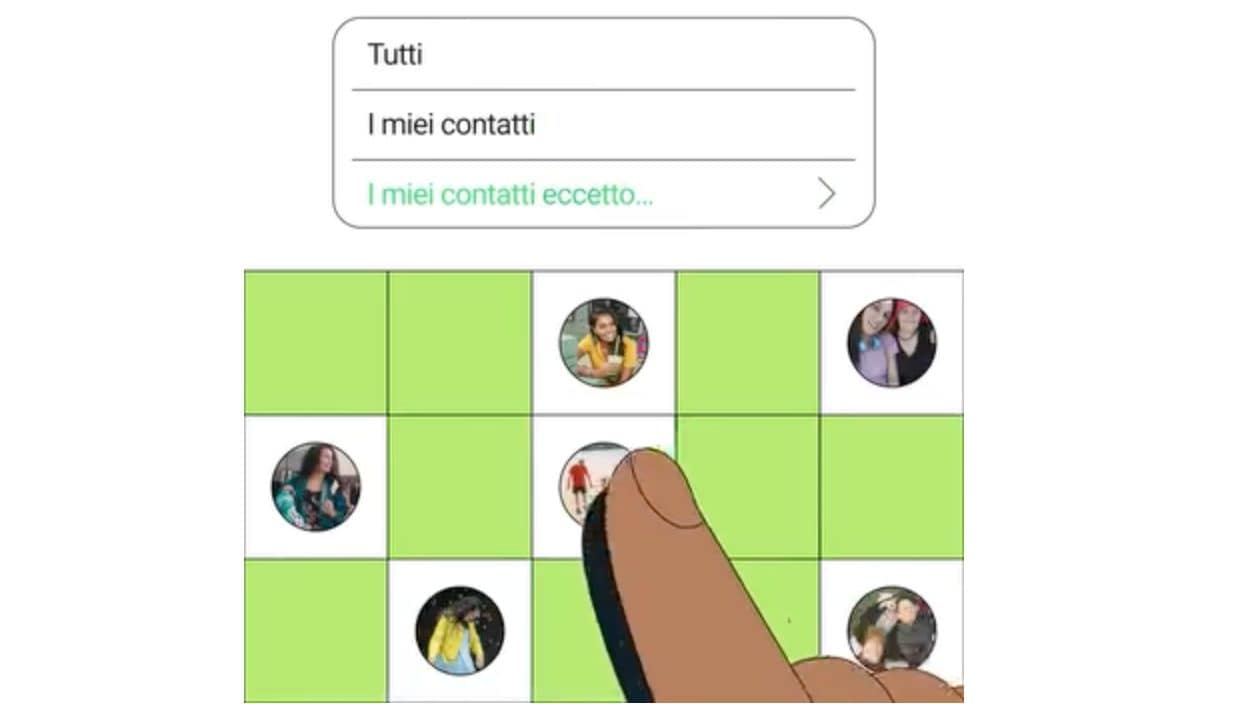
If in recent days you have received a video in the official WhatsApp chat showing the function with which you can choose who can add you to groups, you should know that this possibility has been offered by the messaging platform for some time. This is a very useful WhatsApp feature designed to protect your privacy which, if activated, can prevent you from ending up in dubious group chats (like those used by some scammers to trap their potential victims, perhaps promising easy earnings). Turning on the setting takes a few steps. Once this option is enabled, anyone who wants to add you to a group will be able to do so by sending you a link and only if you accept this invitation will you actually be added to the chat.
This is because, when the setting is active and the administrator of a WhatsApp group that is not among the contacts tries to add you but his number is not saved in your contacts, he will not be able to add you directly and will display a warning informing him of this. They will then need to send you a private invitation via chat, which you can accept within three days before it expires. In the next paragraphs we will explain how to choose who can add you to WhatsApp groups by taking advantage of this specific privacy option.
How to choose who can add you to WhatsApp groups on Android
To choose who can add you to WhatsApp groups on Android, proceed as follows:
- Launch the WhatsApp app.
- Tap the ⋮ button and go to Settings > Privacy > Groups.
- Select the privacy option My contacts to allow only your contacts to add you to WhatsApp groups or the My contacts except… option, so that the contacts saved in your phone’s address book, except those you decide to exclude, can add you directly to a group.
How to Change Privacy Options for Group Chats on iPhone
To choose who can add you to WhatsApp groups on iPhone, follow these steps:
- Open the WhatsApp app.
- Go to the Settings > Privacy > Groups section.
- Choose the My contacts privacy option if you want to allow all your contacts to add you to WhatsApp groups or the My contacts except… option, if you want the contacts saved in your smartphone’s address book, with the exception of those you want to exclude, to be able to add you to a group without asking your permission.
How it works on Mac computers
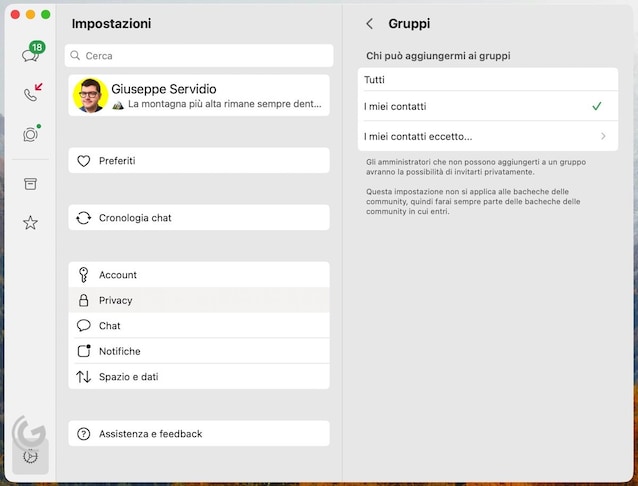
Let’s now see how to proceed from a computer, using WhatsApp Web and the WhatsApp desktop client for Mac (the one for Windows, at least at the moment, does not allow you to act on these settings). In both cases, simply follow this procedure:
- Open the WhatsApp client or access WhatsApp Web from your computer’s browser.
- Click on the Settings icon (the gear at the bottom left) and then go to Privacy > Groups.
- Finally, choose the option you prefer (e.g. My contacts or My contacts except…).