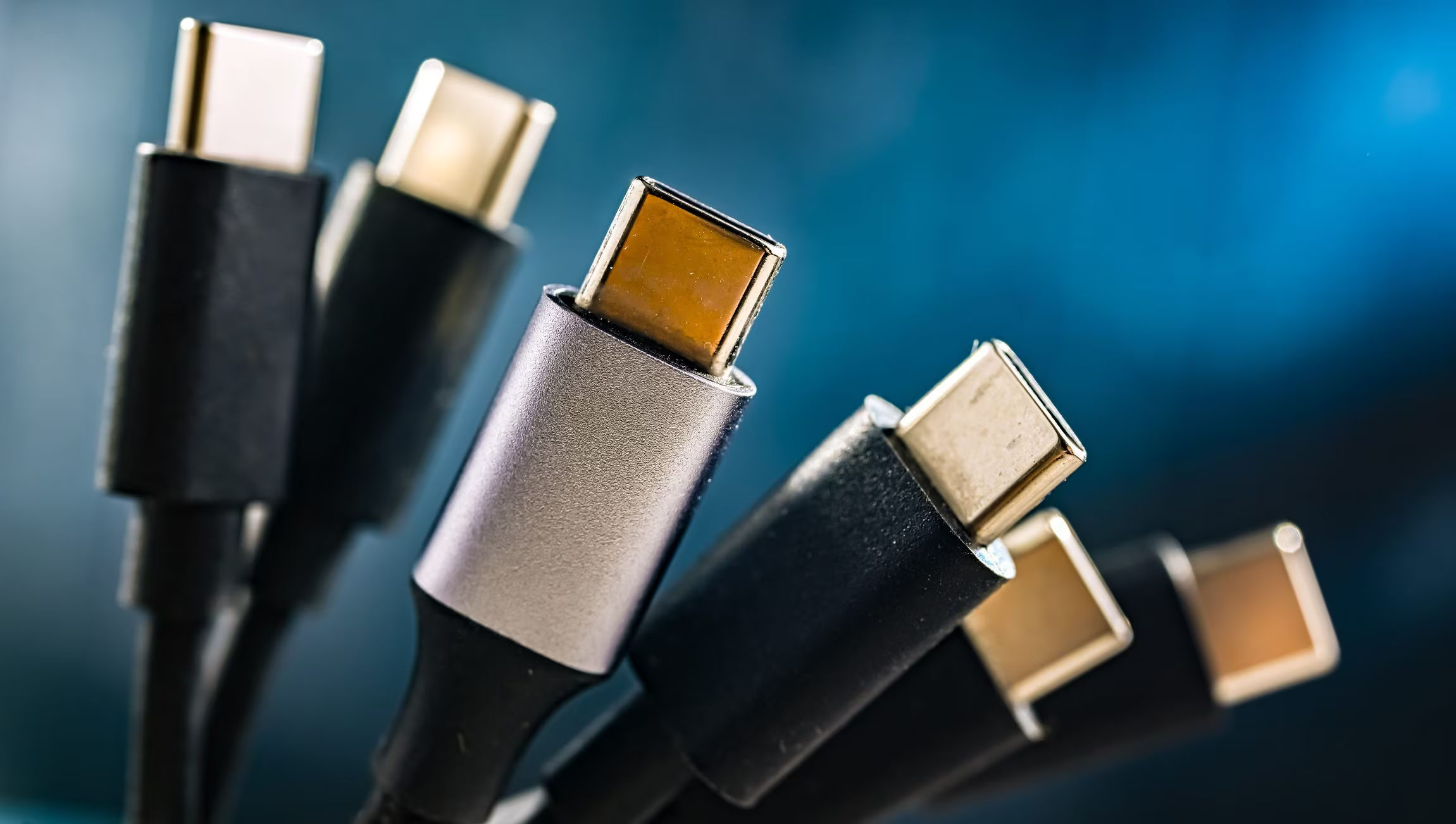
At first glance, two USB-C cables may seem interchangeable: they have the same oval connector and often have no legible markings. Yet one could be used primarily for charging and transferring data slowly, while another can power a notebook, connect a monitor and move files at tens of gigabits per second.
The acronym USB-C mainly describes the physical form of the connector, not all the functions available. Speed, power and video transmission depend on different specifications and the internal structure of the link. To choose the correct model you must therefore check data speed, supported watts, video compatibility and certifications.
USB-C refers to connector shape, not performance
The USB Type-C connector is small, reversible and can be inserted without respecting a specific direction. Its shape, however, can accommodate very different implementations. USB-C is not synonymous with other technologies such as USB 3.2, USB4, Power Delivery or Thunderbolt: these can use the same socket, but are not automatically present. The fact that USB-C has become the common standard for charging laptops in the European Union does not therefore make all accessories equipped with this connector equivalent.
A USB 2.0 Type-C cable can stop at 480 Mbit/s, while an almost identical product can reach 5, 10, 20, 40 or even 80 Gbit/s. Performance always depends on the least capable element in the chain, so connecting a fast SSD via an accessory limited to USB 2.0 will cause the transfer to occur at the slowest speed. The same principle applies to power and images.
What types of USB-C cables exist: various functions
The most useful classification is based on claimed performance, not just the name of the standard.
- USB 2.0 Type-C cables up to 480 Mbit/s. They are best suited for charging, syncing a smartphone, and peripherals that don’t require quick transfers. They may support USB Power Delivery, but do not have the necessary lines for USB 3.2, USB4, or DisplayPort Alt Mode.
- 5 or 10 Gbit/s USB cables. They are suitable for external drives, hubs, cameras and other accessories. However, the value reported does not establish how many watts they can handle nor does it alone guarantee the video output.
- 20 Gbit/s USB cables. They are intended for fast storage drives, docks and other high-performance peripherals. However, power supply and compatibility with monitors must be checked separately.
- USB4 cables. Depending on the generation and certification, they can support 20, 40 or 80 Gbit/s. The standard allows bandwidth to be shared between data and video protocols. In the most recent version it can reach, in an asymmetric configuration, up to 120 Gbit/s in one direction and 40 Gbit/s in the other.
- Thunderbolt 3, 4, and 5 cables. Use the USB-C connector, but have their own requirements. Thunderbolt 4 achieves 40 Gbit/s, while Thunderbolt 5 offers 80 Gbit/s bidirectional and can reach 120 Gbit/s in one direction via Bandwidth Boost. The lightning bolt symbol, often accompanied by the generation number, helps to recognize them.
These differences are not always visible to the naked eye: to find out about them you need to read the instructions on the product or packaging.
USB-C charging: what Power Delivery and e-markers change
The presence of two USB-C connectors does not automatically indicate available power. USB Power Delivery is the system through which the power supply and device negotiate voltage and current, choosing a level allowed by both. It is also one of the systems used for fast charging smartphones. With current specifications it can reach up to 240 W, sufficient even for notebooks and more energy-intensive devices.
In the current markings of the USB Implementers Forum (USB-IF), the organization that manages the USB specifications and certification program, certified cables with two USB-C ends must be marked 60 W or 240 W. The first value is adequate for many smartphones, tablets and lightweight computers. For a laptop that requires more than 60 W, you should instead choose the higher class from the products with the most recent markings.
Using a lower class model does not normally result in a delivery beyond the permitted limits: negotiation reduces the value to what is permitted by the connected components. However, charging may be slower or insufficient during demanding activities.
In cables that must declare advanced characteristics, for example a 5 A current or certain high-speed modes, there is a chip called e-marker. The component communicates information such as current capacity, maximum speed and other functions to the system. It is not visible from the outside, so markings and technical data remain more reliable than appearance.
Even a higher class cable alone does not guarantee the maximum value: you need a source capable of providing it and a compatible device. A 25W phone will therefore not exceed the power provided by its charging system.
Because some USB-C cables do not transmit video signal
A USB-C port can carry video signal through DisplayPort Alt Mode, USB4, or Thunderbolt, but video support doesn’t automatically derive from the shape of the socket. To connect a notebook to a monitor, the computer, cable, and display or adapter must all be compatible with the required function.
DisplayPort Alt Mode takes advantage of the connector’s high-speed lines and can use up to four lanes for the video signal. A model without these connections, such as a common USB 2.0 Type-C cable, cannot therefore transmit images just because it fits into the port.
Not even the wording “supports video” is enough to establish resolution and refresh rate. The result changes based on the DisplayPort version, the number of lanes assigned to the images, the compression and the bandwidth shared with the data.
Before purchasing it is therefore useful to check the supported modes and resolutions declared by the manufacturer. If your computer doesn’t provide video output from its USB-C port, replacing the cable won’t fix the problem.
Which materials to prefer and how to choose a good USB-C cable
The outer coating protects the conductors from kinks and abrasion, but does not determine the speed or power. A nylon or PET braid may offer greater resistance to chafing, while a smooth TPE or PVC sheath may be more flexible, depending on the formulation.
However, there is no absolute best material: internal structure and construction quality matter more than the name printed on the package. Sturdy braid does not provide adequate shielding, conductors suitable for high currents, or the lines needed for fast transfer.
The point where the wire enters the connector also deserves attention. A flexible reinforcement protects the area most subject to creases, while rigid or poorly maintained endings can be damaged more easily.
For more demanding uses it is preferable to avoid lengths longer than necessary. As distance increases, it becomes more complex to maintain the integrity of high-speed signals. To cover longer routes, active models can be used, equipped with electronic components that condition or regenerate the signal.
In summary, before purchasing you need to check data speed, power, video support, length and certifications. It is also a good idea to pair the cable with a compatible, good quality charger. The most reliable criterion is not to choose the thickest or most expensive product, but to start from the intended use and verify that all the required capacities are declared: the true identity of a USB-C cable is written in its specifications, not in its shape.