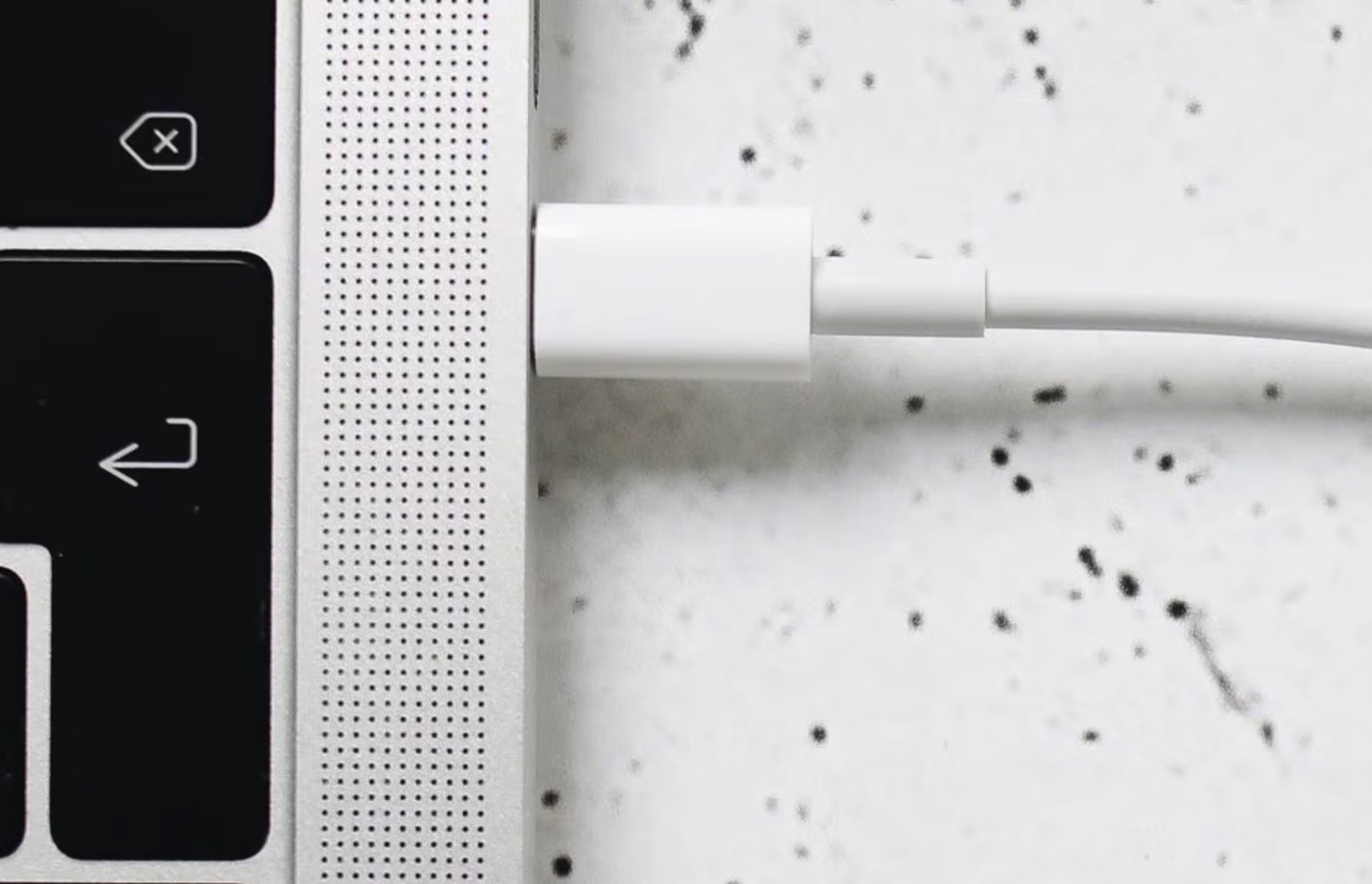
If your laptop charger has exposed wires, warped connectors, or registers abnormally high temperatures when the notebook is charging, it should obviously be replaced. This is because it can pose a risk to your computer and, under certain conditions, even to your own safety. Learning to recognize possible signs of deterioration will allow you to understand when it is time to change chargers, avoiding continuing to use one that may no longer be safe to use. Let’s see, therefore, 5 signs that indicate that the laptop charger is breaking and also some tips to make it last longer.
How to tell if your laptop charger is breaking
Let’s start with the signs that indicate the need to replace the laptop charger.
Exposed wires and damaged sheath
If you notice that the charger has exposed wires, for example because the sheath is damaged or worn, do not ignore this sign. A damaged sheath may have left internal wiring and metal shielding exposed to external influences, such as moisture.
And don’t think you can get by with a bit of insulating tape: such palliatives would not restore the original insulation or repair any internal damage. A compromised cable can cause a short circuit, i.e. an anomalous passage of current, increasing the risk of electric shock, fire and damage to the laptop’s components.
Warped or loose connectors
The second red flag concerns the presence of deformed or loose connectors. The metal contacts of the charger must fit into the socket smoothly and remain stable. If this is not the case with your magazine, as you struggle to get it to fit into the socket or if it wobbles and needs to be moved to make contact, something is obviously wrong. An unstable connection can cause an electric arc and generate heat. This can create potential damage to the charger itself, but also to the socket or even the computer.
Intermittent charging
The third sign to look for in a faulty charger is intermittent charging. If the laptop continually switches between charging and not charging, all while the cable is connected, the problem may be with internal components of the power supply or cable. Damaged components, deteriorated wires, or problems regulating voltage can prevent the charger from providing stable power.
And be careful: sudden changes in power supply are not simply annoying, but can subject the computer’s energy management circuits to abnormal stress and, in the most serious cases, damage internal components.
Damaged connector
The fourth signal concerns the connector that enters the laptop. Whether it is a USB-C connector or a proprietary one, pay attention to the end part of the cable, since this is inserted and removed very often and can therefore wear out over time. The presence of cracked plastic, deformed contacts, burn marks, blackening or crushed parts is a sign that should not be underestimated.
If to get the charge you are forced to do “acrobatics” with the cable, holding it at an angle or in any case in a particular position instead of the one foreseen by the manufacturer, continuing to use it can also damage the computer port. A loose connection can in fact increase the electrical resistance, i.e. the opposition that a material exerts to the passage of current, producing heat. If you notice traces of melting or burns, therefore, immediately stop using the accessory.
Excessive heat
The fifth sign is the possible presence of excessive heat. It is normal for the adapter to become slightly warm while charging, especially when you are using the laptop while it is charging and putting a heavy workload on it. It is not normal, however, if the temperatures reached are such that they are difficult to touch.
What to do to prolong his life
If one or more of the points we mentioned above have led you to the conclusion that you should change the magazine, do so without delay. But then also pay attention to the maintenance of the new accessory, so as not to wear it out prematurely.
To extend the life of the charger, start with the cable: avoid rolling it very tightly, because repeated folding can damage the thin copper conductors inside it. Changing the way you wrap it every now and then can also avoid always subjecting the same point to the same stress.
Also pay attention to where you place the cable. The sharp edges of desks and tables can gradually wear away the protective sheath.
Another precaution to take is to use, when possible, a power strip that has an integrated surge protector. This will protect not only the laptop charger from possible overvoltages, but also everything you connect to the mains via it.
A final suggestion that we advise you to adopt is to ensure that the transformer is positioned in a place that favors heat dissipation (therefore not under the pillow or in other similar situations), so as to avoid episodes of overheating which are not good for the electronic components of the laptop PC and its charger.