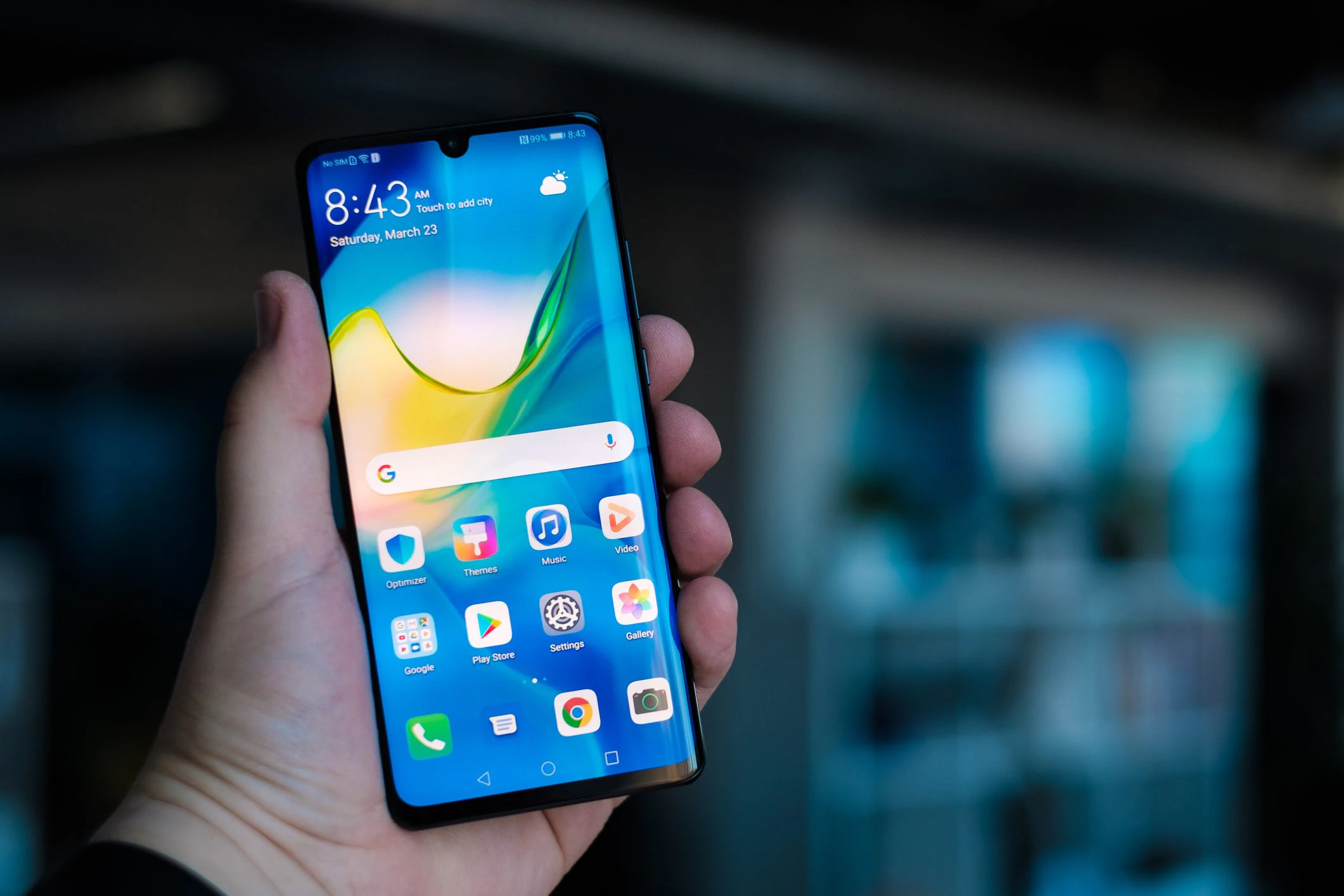
Hiding the icons of applications installed on your Android smartphone allows you to reduce their visibility and isolate them from the rest of the system, without having to uninstall them. This possibility, offered by numerous manufacturers who “run” their devices with the Android operating system, can be activated via some settings. Since the steps may vary from device to device (depending on the Android version available, the launcher used and the various software customizations applied by the various smartphone manufacturers), in the next paragraphs we will explain how to hide the applications installed on Android by organizing the steps based on three major brands that have shared them on their respective support pages. If you have devices produced by other “names”, you could try searching on their website for any available steps.
Procedures for hiding apps on Android
Here are the procedures to follow to hide applications on Android devices produced by Google, Samsung and Xioami.
Let’s start with the solution proposed directly by Google, the company that actually develops and distributes Android. With Android 15 the Mountain View giant has introduced private space, a separate section of the phone that we can consider a sort of “digital safe”. Here the apps are not just hidden from the home screen, but installed in a separate environment, with data isolated from the rest of the system. We can quickly switch from the main profile to the private space, set a dedicated access block, such as a PIN or a different password, and even make the very existence of this space less obvious. However, it should be clarified that “less evident” does not mean invisible in an absolute sense: those who install new apps on the device, those who connect it to a computer using tools such as ADB or some apps with detection capabilities can still identify traces of private space, as well as in system registers, the so-called logs.
Private space is not available in every situation. You need Android 15 or later and compatible hardware, the device does not have to be managed by a company or use supervised accounts, and we can only activate it as primary users, not as guests or secondary profiles. Google also recommends using a Google Account dedicated to private space, so notifications and files do not “leave” from that environment. The configuration goes through security and privacy settings, requires authentication and the choice of a locking method, and may or may not include the use of a fingerprint. The apps installed in the private space are new instances: data is not copied from those already present, precisely to maintain separation. If we decide to delete the private space, all local apps and data are deleted without backup, although any data synchronized online can be recovered by accessing the services again. Here are the steps to follow to activate the setting:
- Go to Settings > Security and privacy > Private space and authenticate by providing the lock screen of the device in use.
- Touch the items Configure > Ok.
- Decide which screen lock to use from the options Use device lock screen or Choose a new lock, follow the on-screen instructions and tap Done.
Once configured, the private space can be locked and unlocked. As Google explains on its support pages «When Private Space is locked (apps) are hidden from the App Launcher, recent views, sharing apps, such as Docs UI and photo picker, and Settings, which includes permissions settings and the privacy dashboard».
To unlock the private space, simply go to the Home or All apps screen, scroll down until you reach the Private space section, then tap Private space: tap to configure or open and, finally, use the locking system set to proceed.
Samsung
On Samsung devices, the simplest way to hide apps is to use an ad hoc function that allows you to do this by changing the settings on the Home screen. Here’s how to take advantage of this possibility:
- Go to the apps screen, tap the ⋮ button at the top right and select Home screen settings > Hide apps.
- Select the apps to hide.
- Confirm by tapping the Apply and Done options.
From this moment, the app will be less visible (and its visibility can be restored if necessary by following the opposite procedure to the one we have just described).
Xiaomi
Xiaomi takes a similar approach on newer models like the 14T Pro. Through the Security app it allows you to activate the option to hide apps, making them invisible both from the home screen and from the app drawer. Here too the goal is to prevent random or unauthorized access without uninstalling anything. Hidden apps can be displayed with a specific gesture by spreading two fingers on the Home screen. To hide apps on Xiaomi devices, these are the steps to follow:
- Open the app Safety.
- Scroll down to find and tap it Hide apps.
- Move the switch next to the various apps shown to ON or OFF, depending on which ones you want to hide or make visible.